Preparation#
Get harbor offline/online#
I use offline method for the installation
1
2
3
| $ mkdir ~/harbor-registry && cd ~/harbor-registry
$ wget https://github.com/goharbor/harbor/releases/download/v2.11.2/harbor-offline-installer-v2.11.2.tgz
$ tar xzvf harbor-offline-installer-v2.11.2.tgz
|
You will need docker-compose this time
1
| $ apt install docker-compose
|
Deploy#
Setup configuration file#
Go to your harbor directory, it should be like this:
 1
 2
 3
 4
 5
 6
 7
 8
 9
10
11
12
13
14
15
16
17
18
19
20
21
| .
├── common
│ └── config
│ ├── core
│ ├── db
│ ├── jobservice
│ ├── log
│ ├── nginx
│ ├── portal
│ ├── registry
│ ├── registryctl
│ └── shared
├── common.sh
├── docker-compose.yml
├── docker-compose.yml.bak
├── harbor.yml.tmpl
├── harbor.v2.11.2.tar.gz
├── harbor.yml
├── install.sh
├── LICENSE
└── prepare
|
Create harbor.yml
1
| $ cp harbor.yml.tmpl harbor.yml
|
Edit some lines
 1
 2
 3
 4
 5
 6
 7
 8
 9
10
11
12
13
14
15
16
17
18
19
20
21
22
23
24
25
26
27
28
29
| # Configuration file of Harbor
# The IP address or hostname to access admin UI and registry service.
# DO NOT use localhost or 127.0.0.1, because Harbor needs to be accessed by external clients.
hostname: harbor.lab7.local # this line
# http related config
http:
# port for http, default is 80. If https enabled, this port will redirect to https port
port: 5001 # this line, i use 5001 since 5000 already used by registry2
## Disable/comment the https since we use nginx/apache as frontend
# https related config
#https:
# https port for harbor, default is 443
# port: 5001
# The path of cert and key files for nginx
# certificate: ""
# private_key: ""
# enable strong ssl ciphers (default: false)
# strong_ssl_ciphers: false
harbor_admin_password: <YOUR_PASSWORD> # this line
# Harbor DB configuration
database:
# The password for the root user of Harbor DB. Change this before any production use.
password: <YOUR_PASSWORD> # this line
|
You can configure the other lines or just let it default
Run the prepare script
it will setting up and create docker-compose.yml from harbor.yml
Next is bring up harbor
Verify and make sure there’s no error log
1
2
| $ docker ps -a | grep -i harbor
$ docker logs <harbor container registry name>
|
Setting webserver#
For the apache2 site, you can cp from the registry we made earlier.
1
2
| cd /etc/apache2/sites-available
cp docker-registry.conf harbor-registry.conf
|
Edit file
 1
 2
 3
 4
 5
 6
 7
 8
 9
10
11
12
13
14
15
16
17
| <VirtualHost *:443>
ServerName harbor.lab7.local # this
SSLEngine on
SSLCertificateFile /root/docker-registry/cert/server.crt
SSLCertificateKeyFile /root/docker-registry/cert/server.key
ProxyPreserveHost On
ProxyPass / http://10.13.13.100:5001/ # and this (the port)
ProxyPassReverse / http://10.13.13.100:5001/
RequestHeader set X-Forwarded-Proto "https"
<Location />
Require all granted
</Location>
</VirtualHost>
|
Enable site
1
2
| $ a2ensite harbor-registry.conf
$ systemctl reload apache2
|
Testing#
Login, push and pull#
login to harbor
1
2
3
4
5
6
7
8
| $ docker login https://harbor.lab7.local
Username: admin
Password:
WARNING! Your password will be stored unencrypted in /root/.docker/config.json.
Configure a credential helper to remove this warning. See
https://docs.docker.com/engine/reference/commandline/login/#credential-stores
Login Succeeded
|
push image
1
2
| $ docker tag nginx:alpine harbor.lab7.local/nginx:alpine
$ docker push harbor.lab7.local/nginx:alpine
|
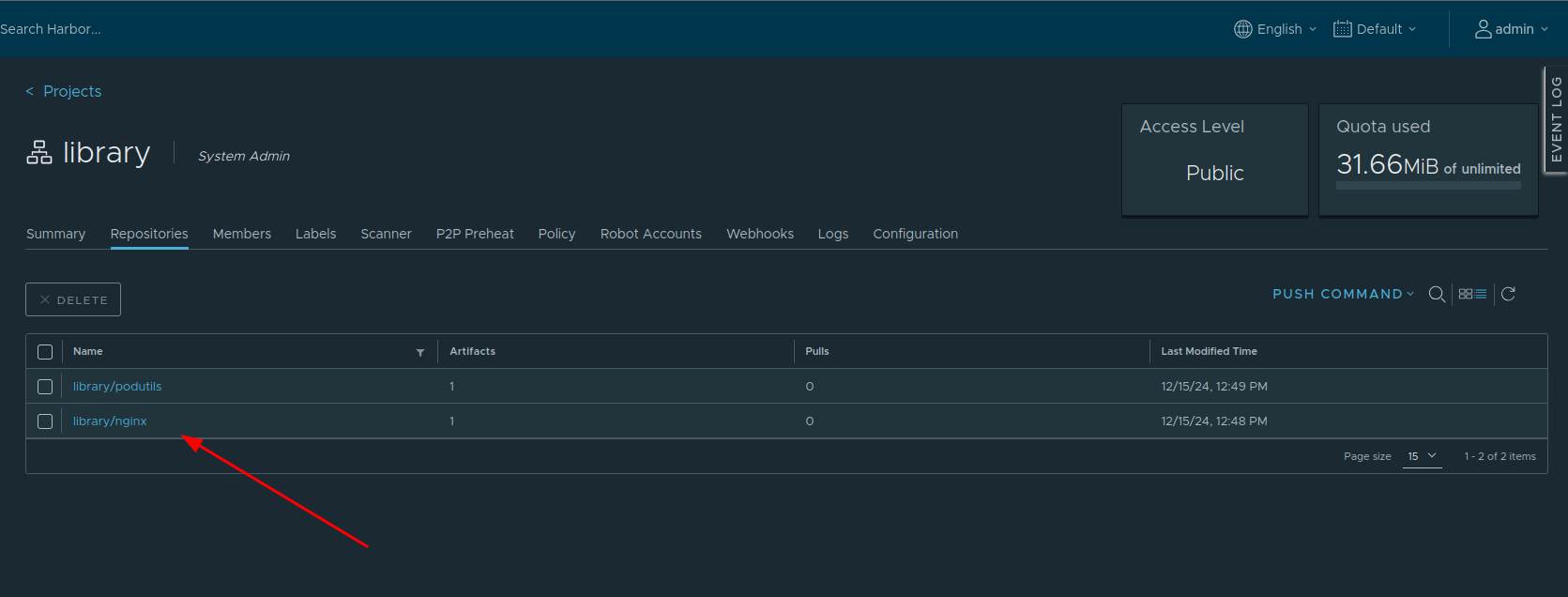
Open harbor ui on your browser, login and see if the image successfuly pushed
There you go :D, you also can make a proxy-cache registry on harbor, for kubernetes or k3s pulling from harbor is just the same way as simple registry, you can check this article